What is an Action?
6 mins read - Updated on Sep 29, 2026Actions help you turn the findings in your report into practical next steps.
While Signals show where meaningful patterns stand out in customer feedback, Actions take these findings further by suggesting what you can do about them. When generating an Action Plan, Kimola considers the Signals together with the supporting feedback and other evidence in the report, forms hypotheses, checks them against the available data, and generates recommendations based on the goal you define for the plan.
In short, Actions can help you answer questions such as:
- What should we improve, fix, or prioritize?
- Which customer needs or opportunities should we act on?
- What should we consider when planning product, positioning, campaign, competitive, or customer experience decisions?
- How can we tell whether an action has worked?
Sign in to your Kimola account and go to the Dashboard. For the most useful Action Plans, we recommend generating Signals first. Without Signals, the plan may contain very few or no actions.
If you haven’t created a report yet, you can Create a Report by Uploading a Custom Dataset or Create a Report by Adding Links.
How Actions Work
Actions use Signals together with the supporting feedback and other evidence available in your report.
When you generate an Action Plan, Kimola does not simply turn each Signal into a recommendation. It looks across the report, forms hypotheses about what may be driving the findings, and checks those hypotheses against the available customer feedback and supporting evidence.
During this process, Kimola reviews patterns in the report, reads the related feedback, and looks for evidence that supports or challenges each hypothesis. Recommendations that are not sufficiently supported by the data are not included in the final plan.
The plan is also shaped by the context you provide when creating it, such as whether you are analyzing your own offering, a competitor, or the broader market, and what you want the plan to focus on.
A Signal may show that stability-related feedback has increased on a particular platform. Kimola can review the supporting comments and other findings in the report to understand what is driving the issue before suggesting an action.
In other words, Actions move from finding a pattern to understanding what may be behind it and suggesting what to do next.
Create an Action Plan
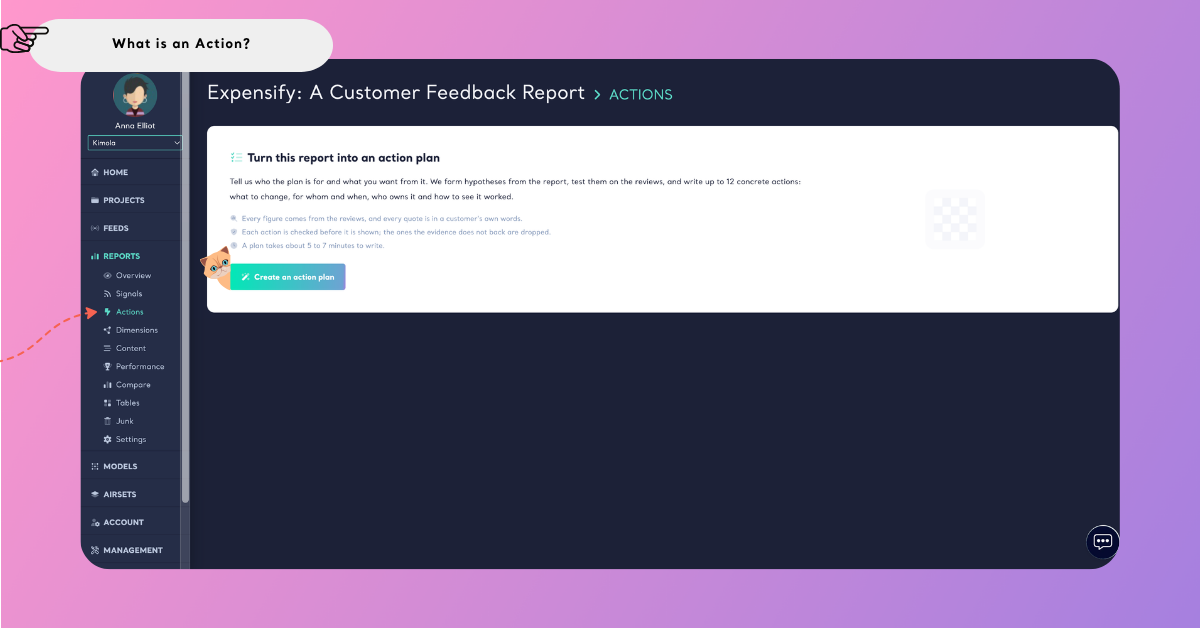
To create an Action Plan, open the Actions page and select Create an Action Plan. Kimola will then guide you through a few setup steps before generating the plan.
1. Choose or Create a Profile
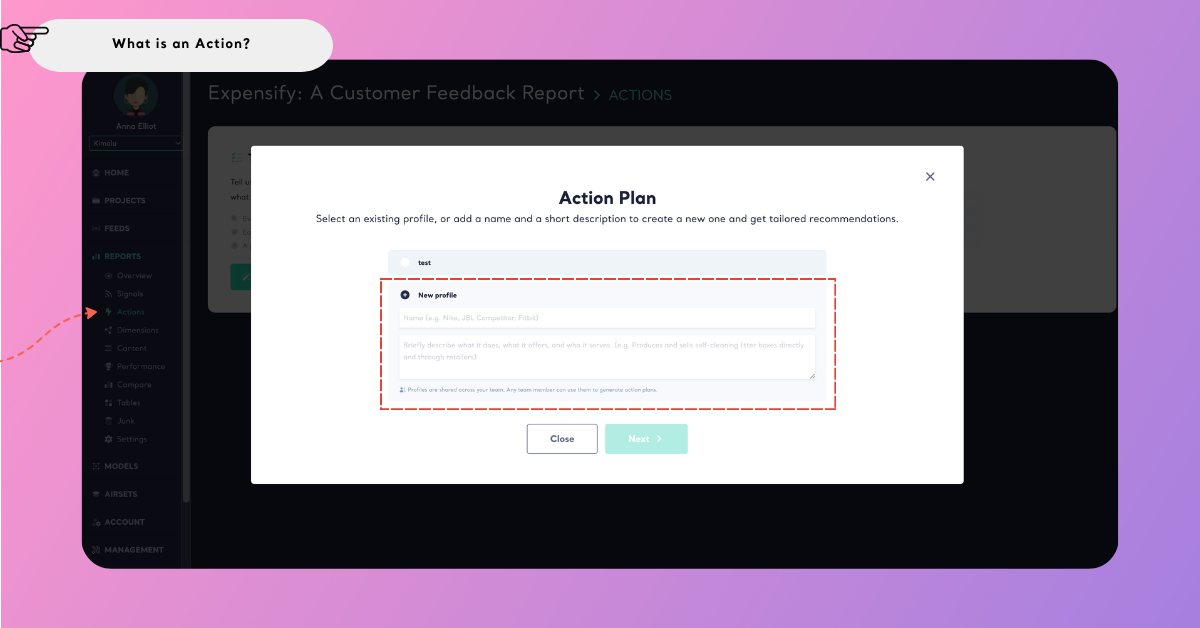
Start by choosing an existing Profile or creating a new one. A Profile gives Kimola context about the business, product, brand, or organization the Action Plan is being created for.
If you create a new Profile, add a Name and a short Description to explain what the profile represents. This context helps Kimola interpret the findings from the right business perspective.
2. Define Where You Stand
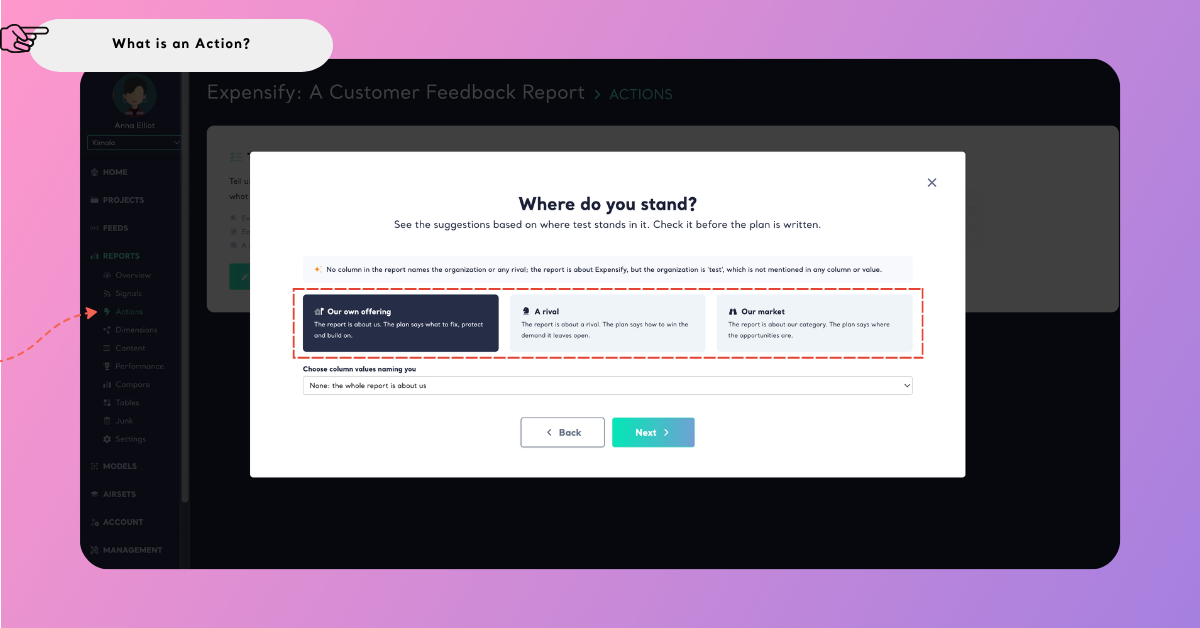
Next, choose the perspective from which you want Kimola to interpret the report. You can select Our own offering, A rival, or Our market.
Choose Our own offering when you are analyzing your own product, service, or brand; A rival when the report focuses on a competitor; or Our market when you want to look at the wider category or market. If you select A rival, Kimola may also ask you to specify the relevant competitor using the available data in the report.
3. Choose the Goal of the Plan
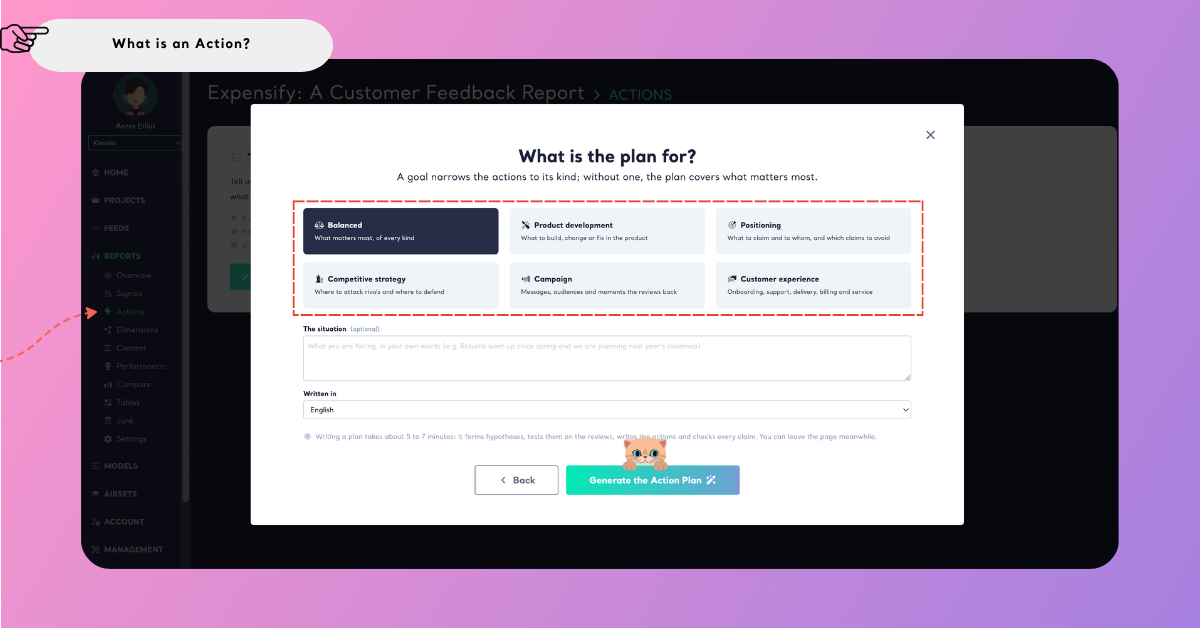
Then, select what you want the Action Plan to focus on. Available goals include Balanced, Product Development, Positioning, Competitive Strategy, Campaign, and Customer Experience.
Your selection helps shape the type of recommendations Kimola generates. For example, a Product Development plan will focus more on what to improve or build, while a Campaign plan will focus more on communication and messaging opportunities.
4. Add Additional Context
You can also provide more context in The situation field to explain anything Kimola should consider while generating the plan. This field is optional, but it can be useful when the report is tied to a specific business situation, challenge, or objective.
You can also choose the language in which the Action Plan should be written.
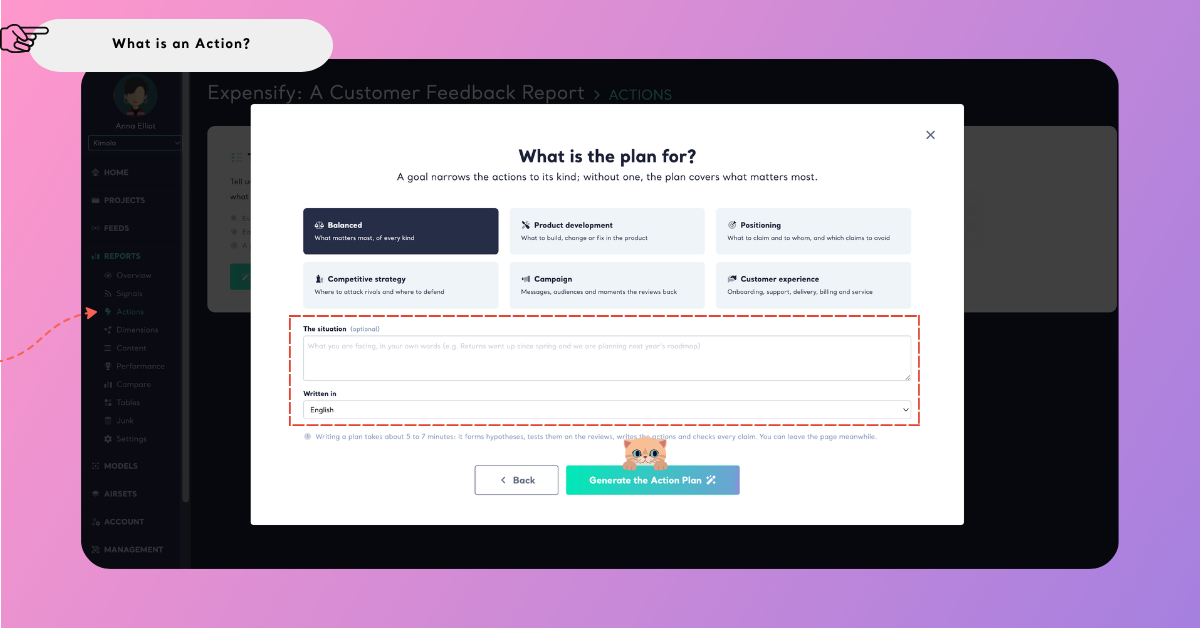
5. Generate the Action Plan
Once the setup is complete, select Generate the Action Plan. Kimola will use the context you provided together with the Signals, customer feedback, and supporting evidence in the report to create the plan.
During generation, Kimola forms hypotheses, reviews the evidence behind them, writes the actions, and checks whether the recommendations are supported by the available data.
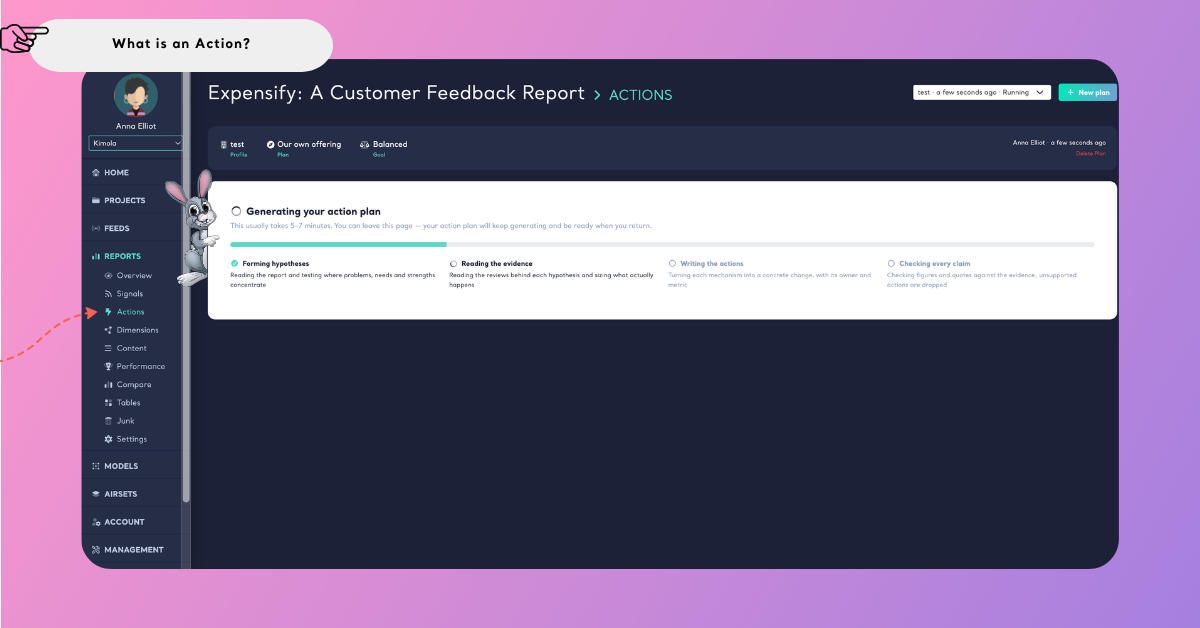
Understanding the Action Plan
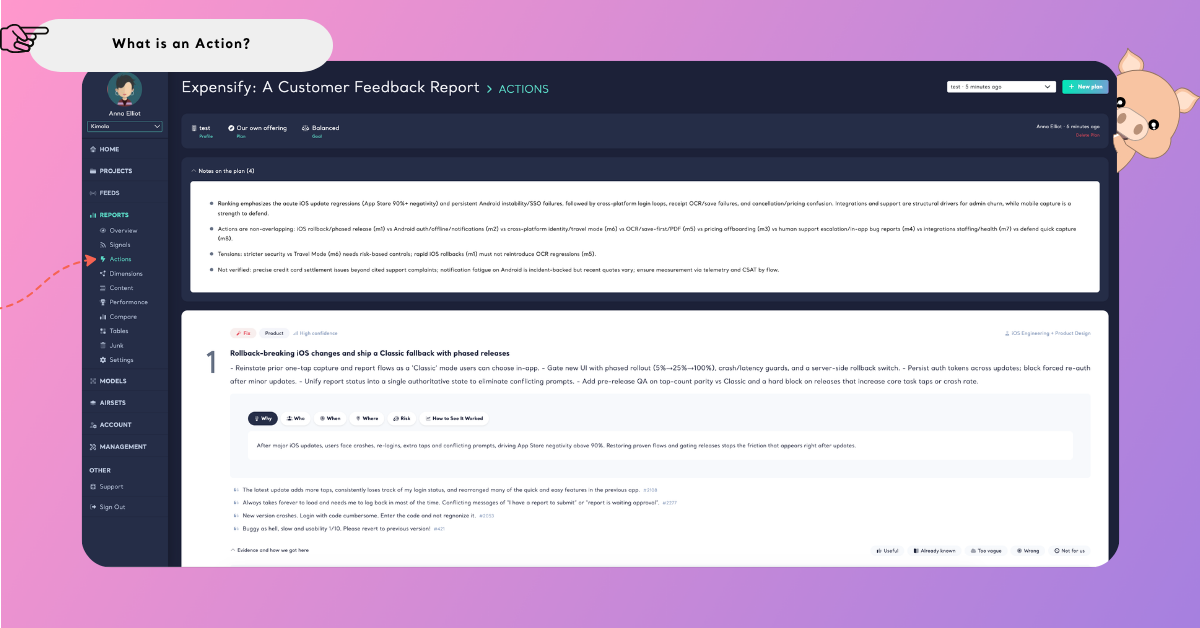
Once the Action Plan is generated, Kimola presents a set of recommended actions based on the Signals, supporting feedback, and other evidence in the report. Each action appears as a separate card that brings together the recommendation, its context, and the evidence behind it.
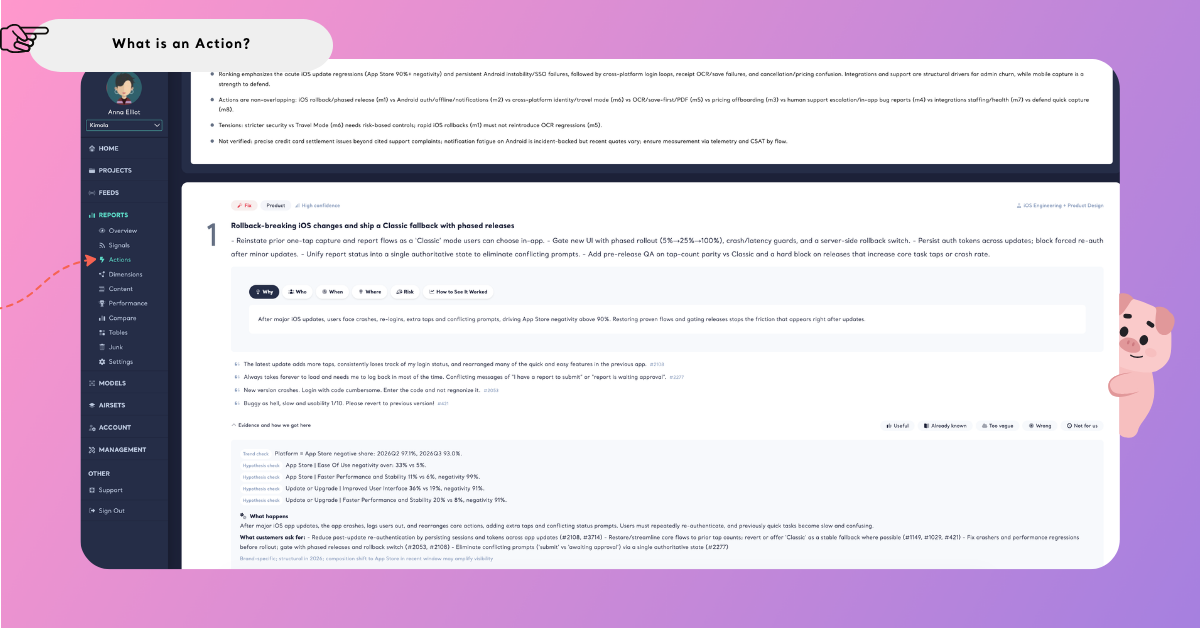
At the top of each card, you can see the action title and a short description of the recommendation. Depending on the action, you may also see information such as its type, related area, confidence level, or suggested owner.
The sections within the card help you understand the recommendation from different angles. Why explains the reason behind the action, while Who, When, and Where provide context about the users, situations, or touchpoints it relates to. Risk highlights potential considerations, and How to See It Worked explains how the impact of the action can be evaluated.
You can also review Evidence and how we got here to see what supports the recommendation. This section brings together the relevant findings, Signals, hypothesis checks, trends, and supporting customer feedback used while forming the action.
Review and Manage Actions
After reviewing an Action, you can give feedback on how useful or relevant the recommendation is to you. Available options include Useful, Already known, Too vague, Wrong, and Not for us. These options let you record how you evaluate each recommendation while reviewing the plan.
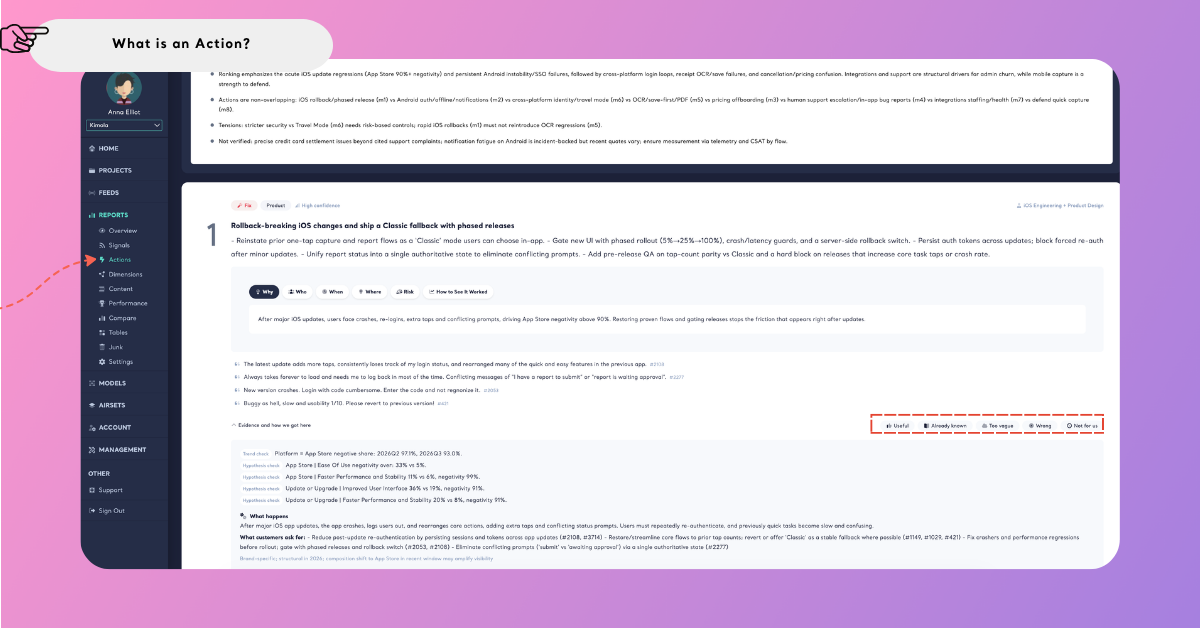
At the top of the Actions page, you can switch between previously created Action Plans using the plan selector. Just below the New plan area, Kimola shows who created the current plan and when it was created, helping you keep track of different plans over time.
You can also delete the current Action Plan from this section if you no longer need it.
Actions help you move from customer feedback and Signals to practical recommendations while keeping the reasoning and supporting evidence visible. You can review each recommendation, evaluate how relevant it is to your work, and use different Action Plans to explore the same report from different perspectives.